> ## Documentation Index
> Fetch the complete documentation index at: https://dripart-mintlify-b90d3c69.mintlify.site/llms.txt
> Use this file to discover all available pages before exploring further.
# macOS — Comfy Desktop
> macOS に Comfy Desktop をインストール・アンインストールする
**Comfy Desktop** は複数の ComfyUI インスタンスを1つのランチャーから実行できるマルチインストールマネージャーです。このガイドでは、macOS に Comfy Desktop をインストールおよびアンインストールする方法を説明します。
## システム要件
* **OS:** macOS 13 (Ventura) 以降
* **ハードウェア:** Apple Silicon(M1 以降)
* **ディスク容量:** インストールごとに最低 4.85 GB を推奨
macOS 用の最新インストーラーをダウンロードしてください。ページが自動的にプラットフォームを検出します。
## インストール
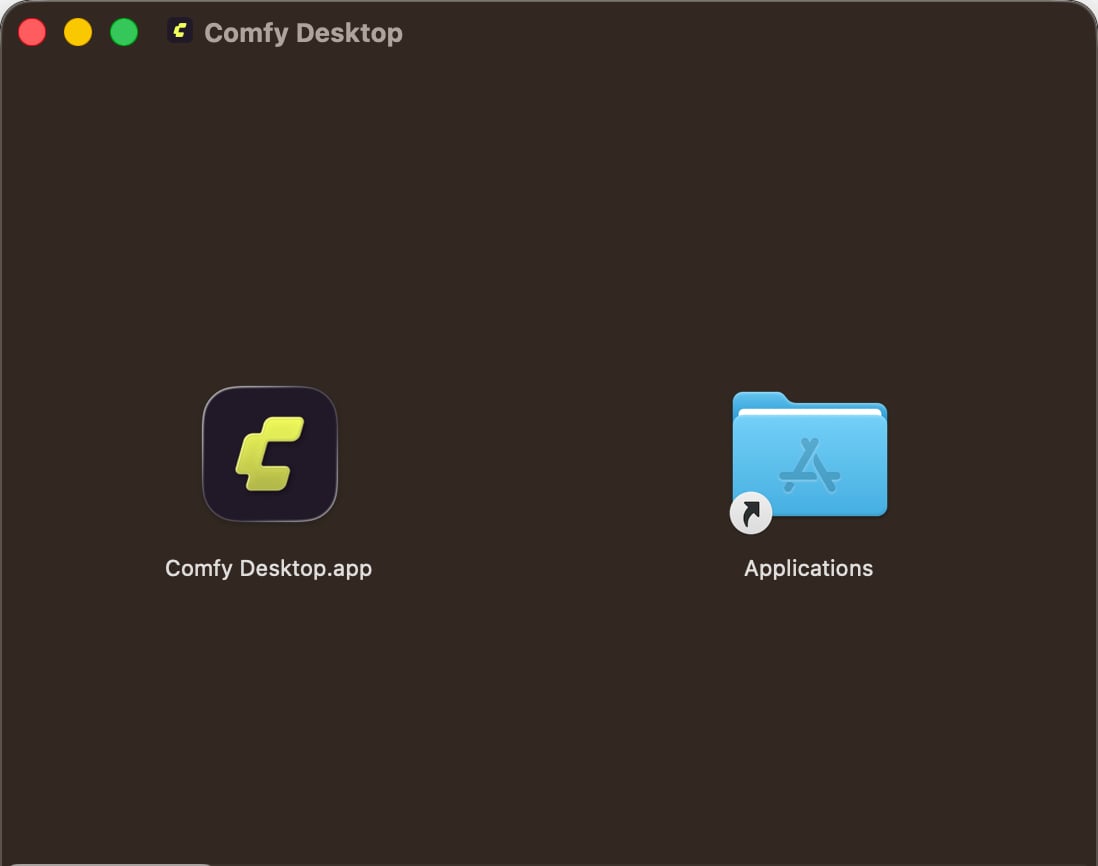
1. ダウンロードした `.dmg` ファイルを開きます
2. **Comfy Desktop** を **Applications** フォルダにドラッグします
3. Launchpad または Spotlight から起動します
 初回起動時に、macOS がセキュリティ警告を表示する場合があります。**システム設定 → プライバシーとセキュリティ** に移動し、**このまま開く** をクリックして許可してください。
**すでに Desktop Legacy をお使いですか?** Comfy Desktop は既存のインストールを自動検出して移行できます。カスタムノード、ワークフロー、モデル、設定はすべて引き継がれます。レガシーインストールはバックアップとしてそのまま残ります。
詳細は[レガシーからの移行](/ja/installation/desktop/usage/migrate)ガイドをご覧ください。
インストール後は、インスタンスの作成、インストール管理、設定の構成方法をご確認ください。
## Comfy Desktop の更新
Comfy Desktop は自動的にアップデートを確認し、以下の2つの方法で管理できます。
## クイックアップデート
アップデートが利用可能な場合、ウィンドウ上部に **Desktop Update Ready** ボタンが表示されます:
初回起動時に、macOS がセキュリティ警告を表示する場合があります。**システム設定 → プライバシーとセキュリティ** に移動し、**このまま開く** をクリックして許可してください。
**すでに Desktop Legacy をお使いですか?** Comfy Desktop は既存のインストールを自動検出して移行できます。カスタムノード、ワークフロー、モデル、設定はすべて引き継がれます。レガシーインストールはバックアップとしてそのまま残ります。
詳細は[レガシーからの移行](/ja/installation/desktop/usage/migrate)ガイドをご覧ください。
インストール後は、インスタンスの作成、インストール管理、設定の構成方法をご確認ください。
## Comfy Desktop の更新
Comfy Desktop は自動的にアップデートを確認し、以下の2つの方法で管理できます。
## クイックアップデート
アップデートが利用可能な場合、ウィンドウ上部に **Desktop Update Ready** ボタンが表示されます:
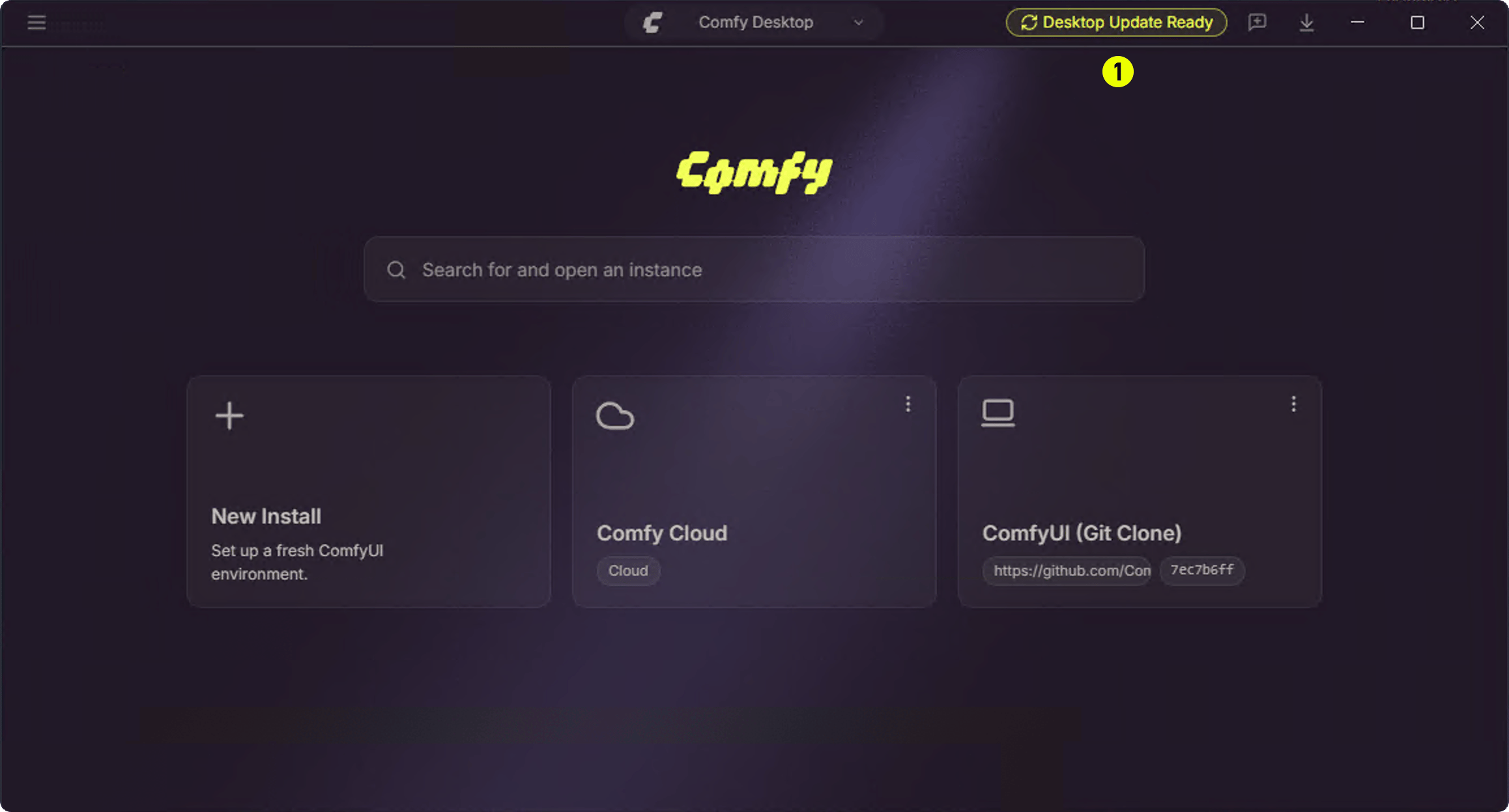 ① **Desktop Update Ready** ボタンをクリックするだけで、Comfy Desktop が再起動して自動的にアップデートをインストールします。
## 設定から手動アップデート
設定パネルからアップデートの確認と管理ができます:
① **Desktop Update Ready** ボタンをクリックするだけで、Comfy Desktop が再起動して自動的にアップデートをインストールします。
## 設定から手動アップデート
設定パネルからアップデートの確認と管理ができます:
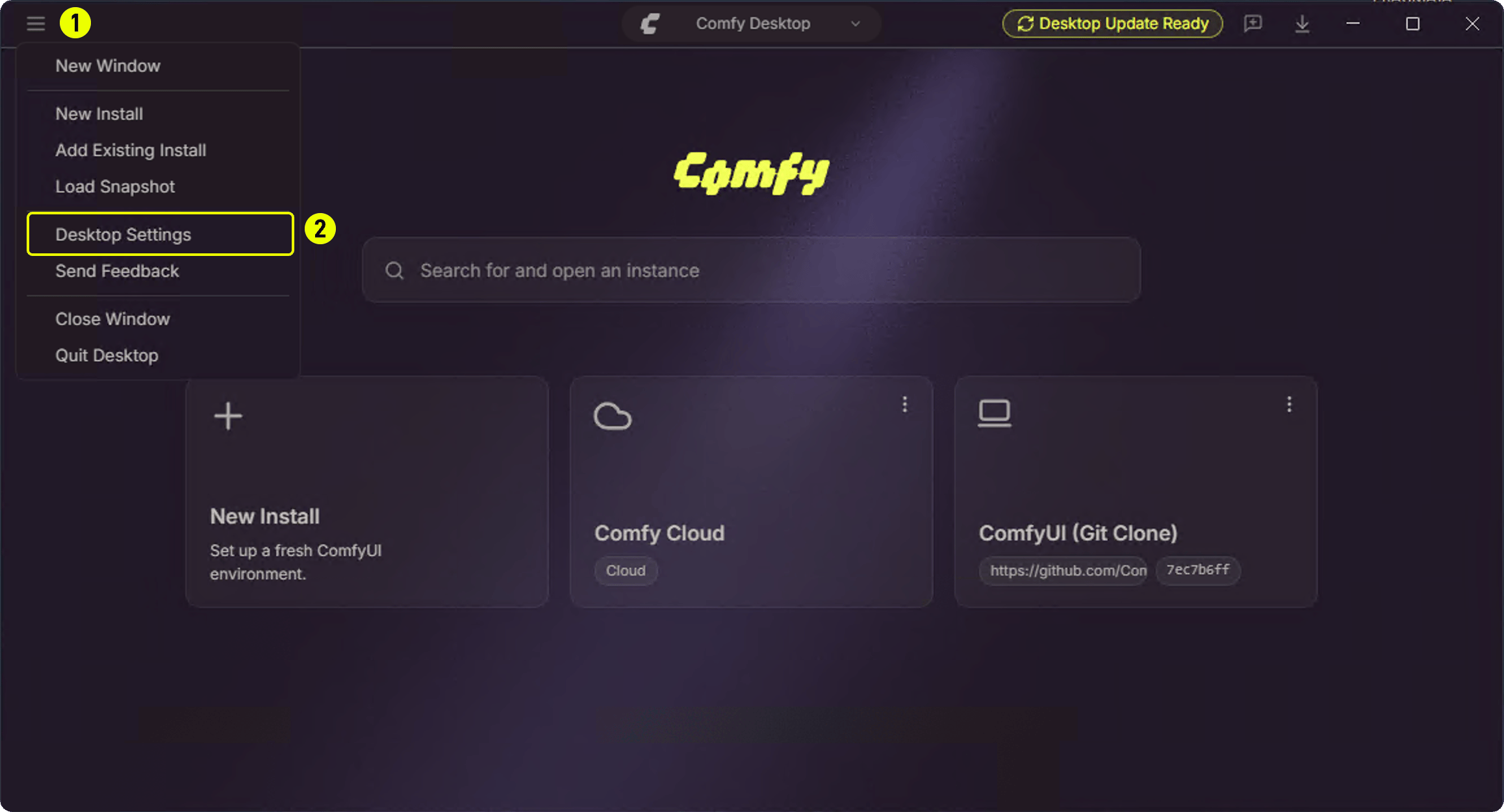 1. **①** 左上のハンバーガーメニューをクリック
2. **②** **Desktop Settings** を選択
1. **①** 左上のハンバーガーメニューをクリック
2. **②** **Desktop Settings** を選択
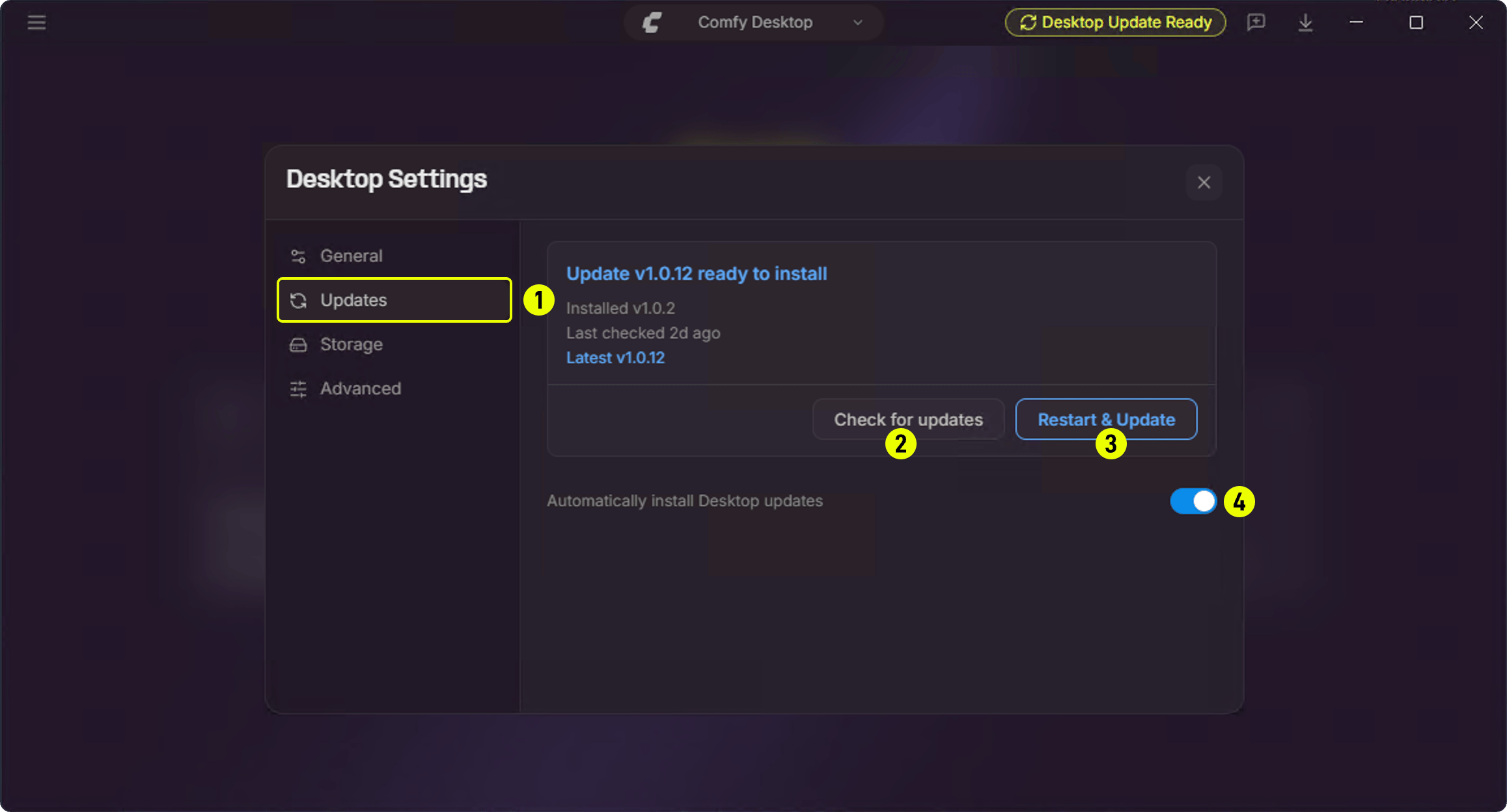 **Updates** パネル:
1. **① Updates** — サイドバーの Updates タブをクリック
2. **② Check for updates** — 手動でアップデートを確認
3. **③ Restart & Update** — 新バージョンがある場合に表示、クリックで再起動してアップデート
4. **④ Automatically install Desktop updates** — 自動アップデートのオン/オフを切り替え
## アンインストール
### Comfy Desktop の削除
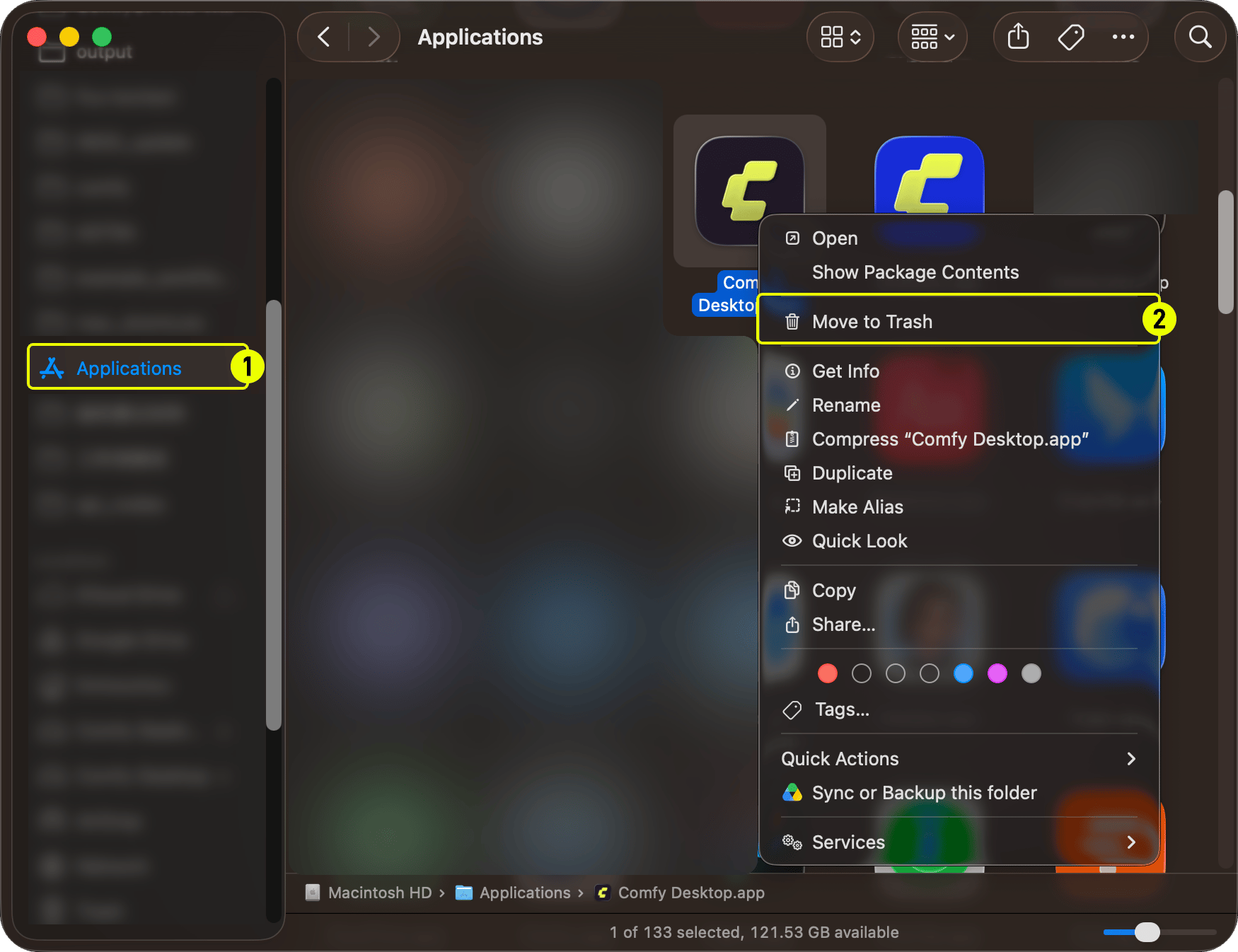
1. Finder で **Applications** フォルダを開く
2. **Comfy Desktop** を右クリックして **ゴミ箱に入れる** を選択
**Updates** パネル:
1. **① Updates** — サイドバーの Updates タブをクリック
2. **② Check for updates** — 手動でアップデートを確認
3. **③ Restart & Update** — 新バージョンがある場合に表示、クリックで再起動してアップデート
4. **④ Automatically install Desktop updates** — 自動アップデートのオン/オフを切り替え
## アンインストール
### Comfy Desktop の削除
1. Finder で **Applications** フォルダを開く
2. **Comfy Desktop** を右クリックして **ゴミ箱に入れる** を選択
 ### アンインストールで削除されないもの
Comfy Desktop のアンインストールはランチャーアプリ自体のみを削除します。以下のデータは**削除されません**。完全にクリーンアップするには手動で削除が必要です:
| データ | 場所 | 説明 |
| -------- | --------------------------------------------- | ------------------------------------------------------ |
| インストール | `~/ComfyUI-Installs` | 作成した各 ComfyUI インストール(アプリ内からも削除可)。カスタムインストールパスも削除されません。 |
| 共有モデルと出力 | `~/ComfyUI-Shared` | 共有モデルライブラリ、入出力ディレクトリ |
| アプリ設定と記録 | `~/Library/Application Support/Comfy Desktop` | 設定、インストール記録、ログ |
上記のディレクトリには、モデル、出力、設定、インストールといったあなたの **個人用 ComfyUI データ** が含まれています。これらは Comfy Desktop アプリケーションファイルではありません。削除するとデータが完全に消去されます。
完全にすべてを削除するには:
1. **アプリデータフォルダを削除** – `~/Library/Application Support/Comfy Desktop`
2. **アプリ内から個別のインストールを削除**、または `~/ComfyUI-Installs` を手動で削除
3. **共有モデルライブラリ** `~/ComfyUI-Shared` を削除(ファイルが不要な場合のみ)
### アンインストールで削除されないもの
Comfy Desktop のアンインストールはランチャーアプリ自体のみを削除します。以下のデータは**削除されません**。完全にクリーンアップするには手動で削除が必要です:
| データ | 場所 | 説明 |
| -------- | --------------------------------------------- | ------------------------------------------------------ |
| インストール | `~/ComfyUI-Installs` | 作成した各 ComfyUI インストール(アプリ内からも削除可)。カスタムインストールパスも削除されません。 |
| 共有モデルと出力 | `~/ComfyUI-Shared` | 共有モデルライブラリ、入出力ディレクトリ |
| アプリ設定と記録 | `~/Library/Application Support/Comfy Desktop` | 設定、インストール記録、ログ |
上記のディレクトリには、モデル、出力、設定、インストールといったあなたの **個人用 ComfyUI データ** が含まれています。これらは Comfy Desktop アプリケーションファイルではありません。削除するとデータが完全に消去されます。
完全にすべてを削除するには:
1. **アプリデータフォルダを削除** – `~/Library/Application Support/Comfy Desktop`
2. **アプリ内から個別のインストールを削除**、または `~/ComfyUI-Installs` を手動で削除
3. **共有モデルライブラリ** `~/ComfyUI-Shared` を削除(ファイルが不要な場合のみ)