

Key Features
- Multi-instance management — run multiple ComfyUI instances side by side, each with its own version, custom nodes, and configuration
- Snapshots — save and restore the full state of an instance (ComfyUI version, custom nodes, Python packages), making it easy to roll back or reproduce an environment
- Shared storage — models are shared across all instances by default, saving disk space. You can also add external model folders
- Automatic updates — update Comfy Desktop itself and individual ComfyUI instances independently through the Manage panel
- Cloud integration — launch or connect to Comfy Cloud instances directly from the Chooser view
- Track existing installations — add your existing portable or git-cloned ComfyUI installations to Comfy Desktop for unified management
Dashboard Overview
Comfy Desktop window is divided into several key areas. The image below labels the main parts of the Dashboard: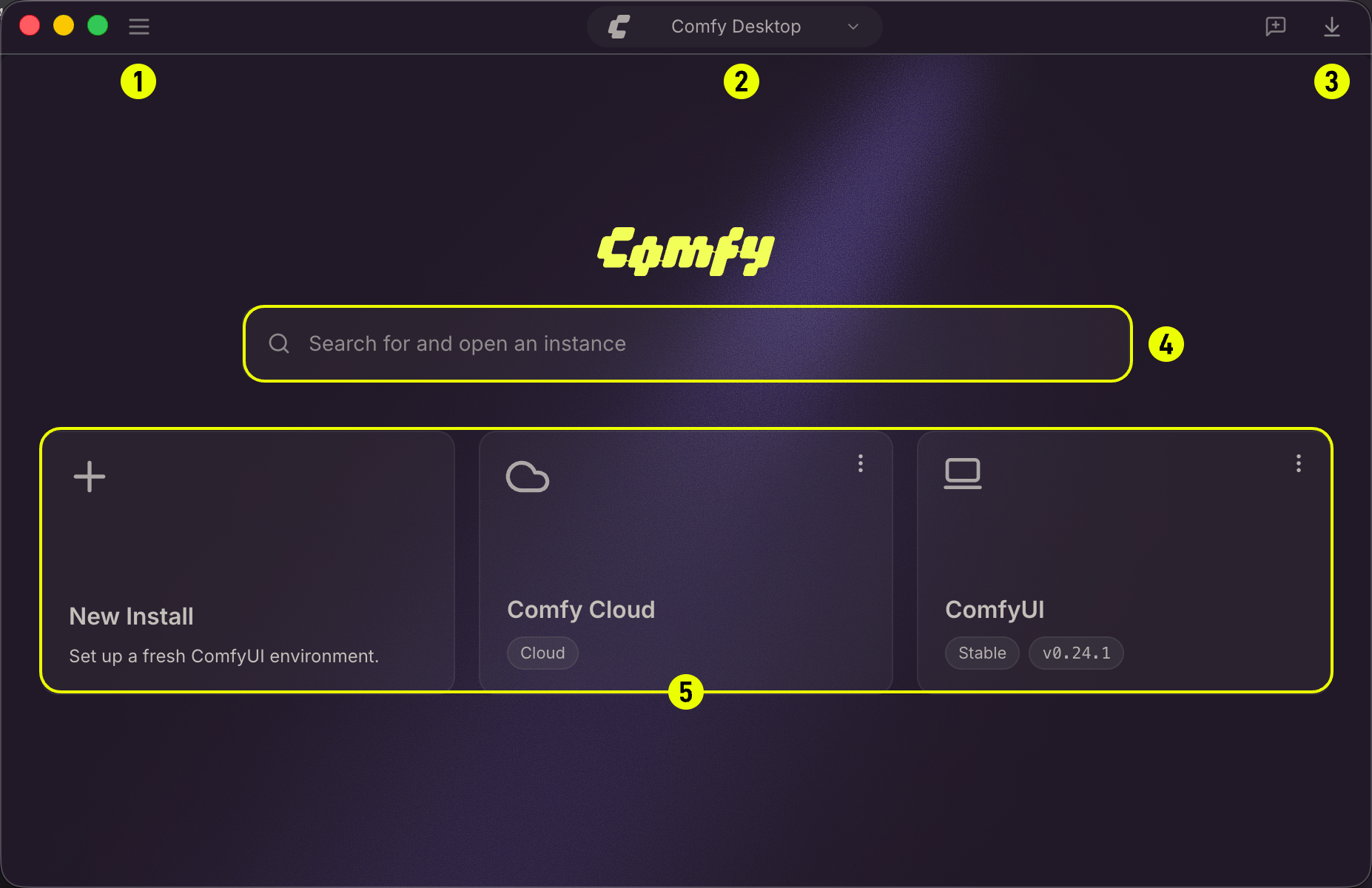
App Menu
The hamburger menu (☰) in the top-left corner opens the application menu (File / Edit / View / Window / Help). Use it to open a new window, access global preferences, quit the app, or find other desktop-level controls.Settings
Global settings: theme, auto-updates, proxy/mirror, and data locations.
Instance Switcher
The center pill shows the name of your active ComfyUI instance. Click it to open the Instance Picker, a popover that lists every installed instance, shows their running status, and lets you switch between them or launch a new one.Managing Installations
Launch, update, snapshot, and configure your installations through the Manage panel.
Trailing Buttons
The buttons grouped on the right side of the title bar provide quick access to:- Desktop Update:when a new version of Comfy Desktop is available, a pill appears here. Click to download and apply the update.
- Feedback:send feedback to the Comfy Desktop team.
- Downloads:opens the downloads tray showing active and recent downloads.
Search
The search box lets you filter your installed instances by name, making it easy to find a specific setup when you have many.Chooser (Instance List)
The main area of the Dashboard, called the Chooser, displays all your ComfyUI instances as cards. Click any instance card to launch or switch to that instance. From here you can:- + New Install:create a new standalone ComfyUI instance.
- Comfy Cloud:connect to or launch a cloud instance.
- Existing instance cards:each card shows the instance name, status, and type. Right-click (or click the ⋮ icon) to manage, update, snapshot, or delete the instance.
Instance Management
Create, rename, edit, and delete ComfyUI instances.
Feedback and Issues
Found a bug or have a suggestion? Comfy Desktop is open source. You can report issues and check planned features here:- Comfy Desktop issues — github.com/Comfy-Org/Comfy-Desktop/issues
- Documentation issues — github.com/Comfy-Org/docs/issues